This walkthrough follows the features this site actually uses.
Most of it is straightforward. The hardest part to grasp is decisions and roles; that logic gets tangled up with security tokens and the like, so it's worth thinking through carefully.
1. Creating the collection
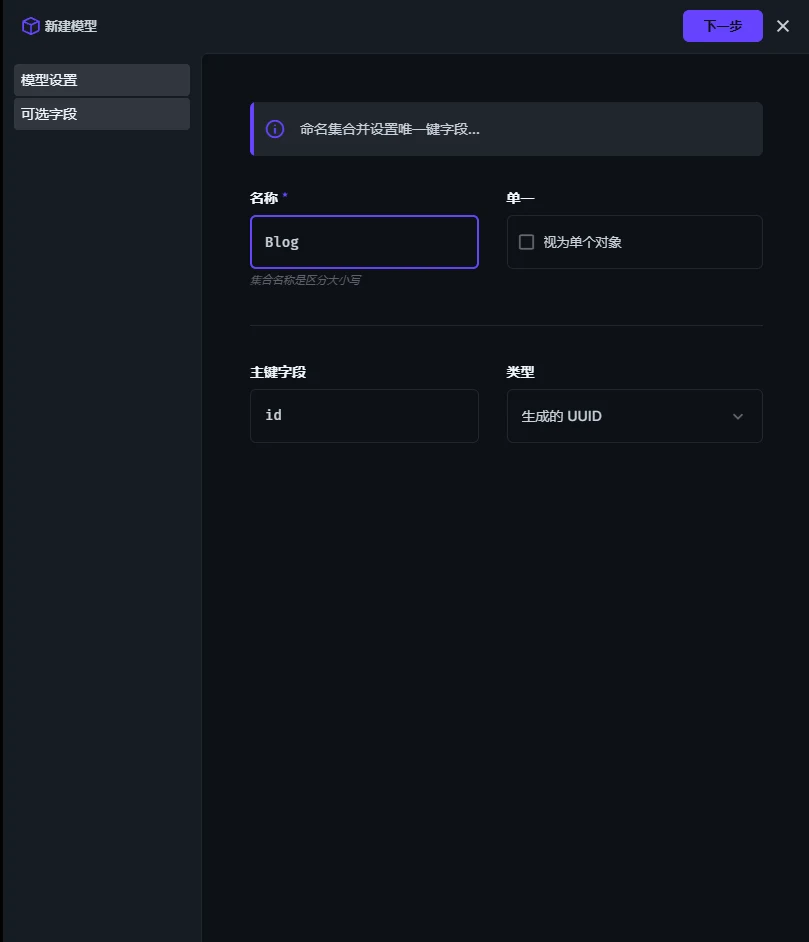
Ones I strongly recommend ticking
-
Created at (date_created):
-
What it does: automatically records the year, month, day, hour and minute the article was created.
-
Why I recommend it: a blog obviously needs to show a publication time, right? Tick this and every new article gets a timestamp automatically; the frontend can simply read and display it.
-
-
Updated at (date_updated):
-
What it does: whenever you edit the article, the field is updated to the current time.
-
Why I recommend it: the frontend can show "last modified on 2026-06-05".
-
2. Ones that depend on your needs
-
Archived:
-
What it does: it works like a draft box, or a soft delete.
-
Why pick it: if you have written half an article and don't want to publish it, or you want to take an article down without deleting it for good, tick this. On the frontend you just filter out archived articles when you call the API.
-
-
Sort:
-
What it does: lets you drag articles in the admin to change their order.
-
Why pick it: for a blog, sorting by date descending is usually enough, so you can leave this unticked. But if you later build a Product collection, I would strongly recommend ticking it, because products often need their display order adjusted by hand.
-
3. Ones you can skip (multi-user collaboration)
-
Created by (user_created) & Updated by (user_updated):
-
What they do: record which admin account wrote or changed the article.
-
Why skip them: this is your personal blog and website, and you are the only person using the admin, so there is no need to record who wrote what. If a company has several people managing the backend, then these are essential.
-
2. Creating fields
In settings you can see your model (table)
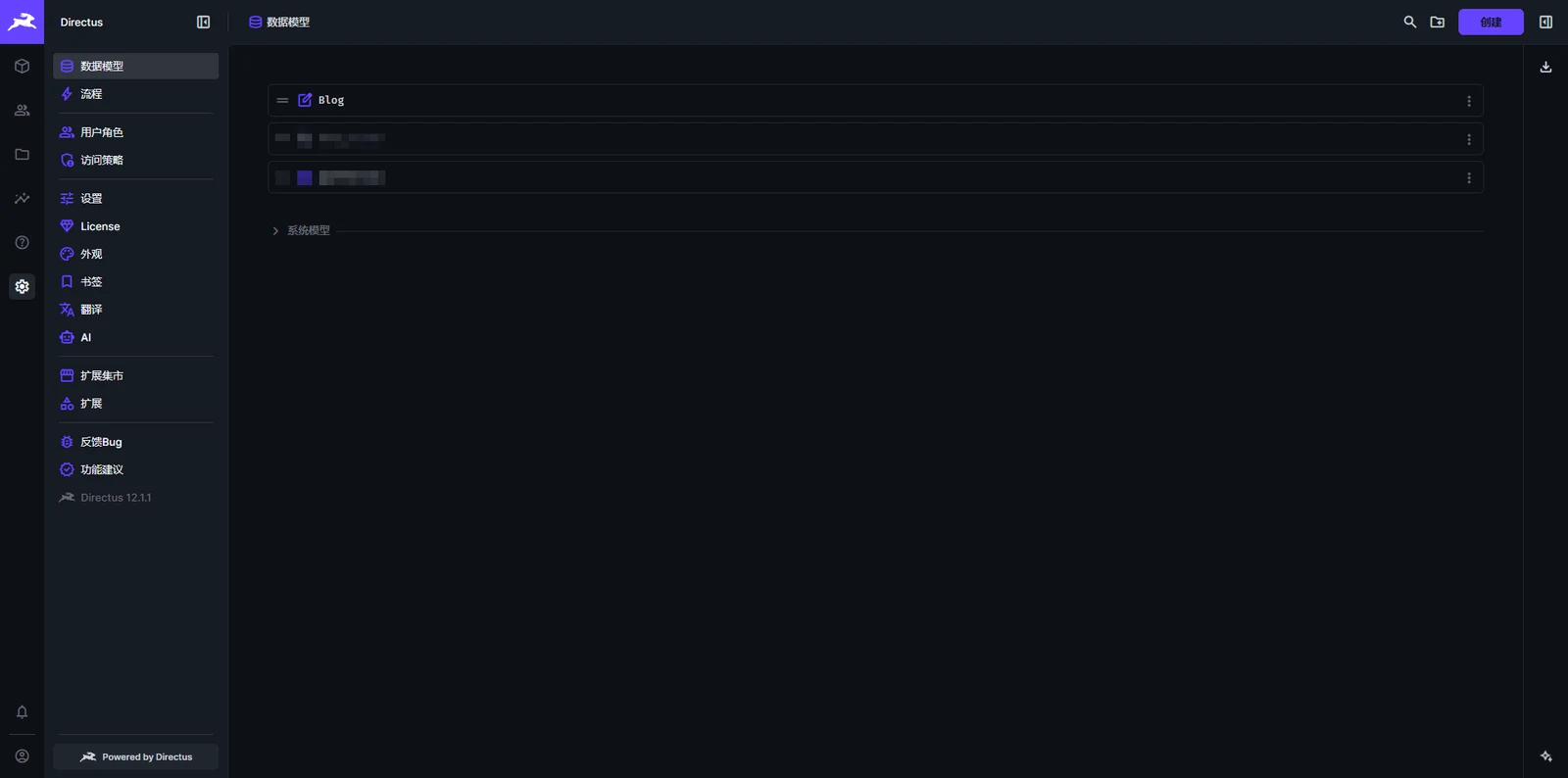
Open the table and you can set up its fields
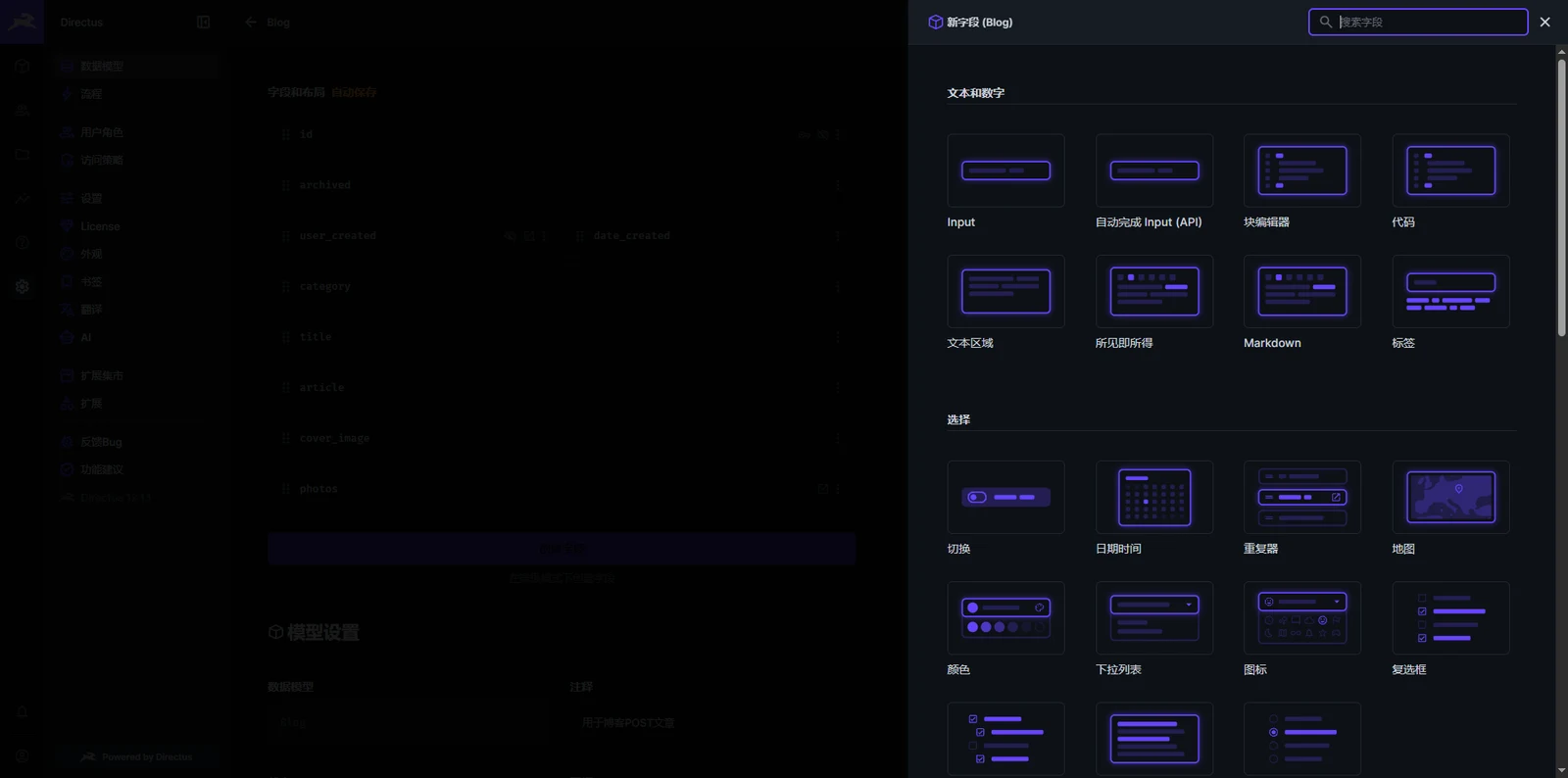
Simple enough, right? You don't even have to set the field types yourself — just pick one. You will still want to read up a little on the specifics.
For example, my article category field `category` uses a dropdown list
The Chinese translation is hard to make sense of; I would still suggest using the English interface.
For example, the rich text editor is labelled "what you see is what you get", which is literally WYSIWYG — no idea how they decided to translate it that way.
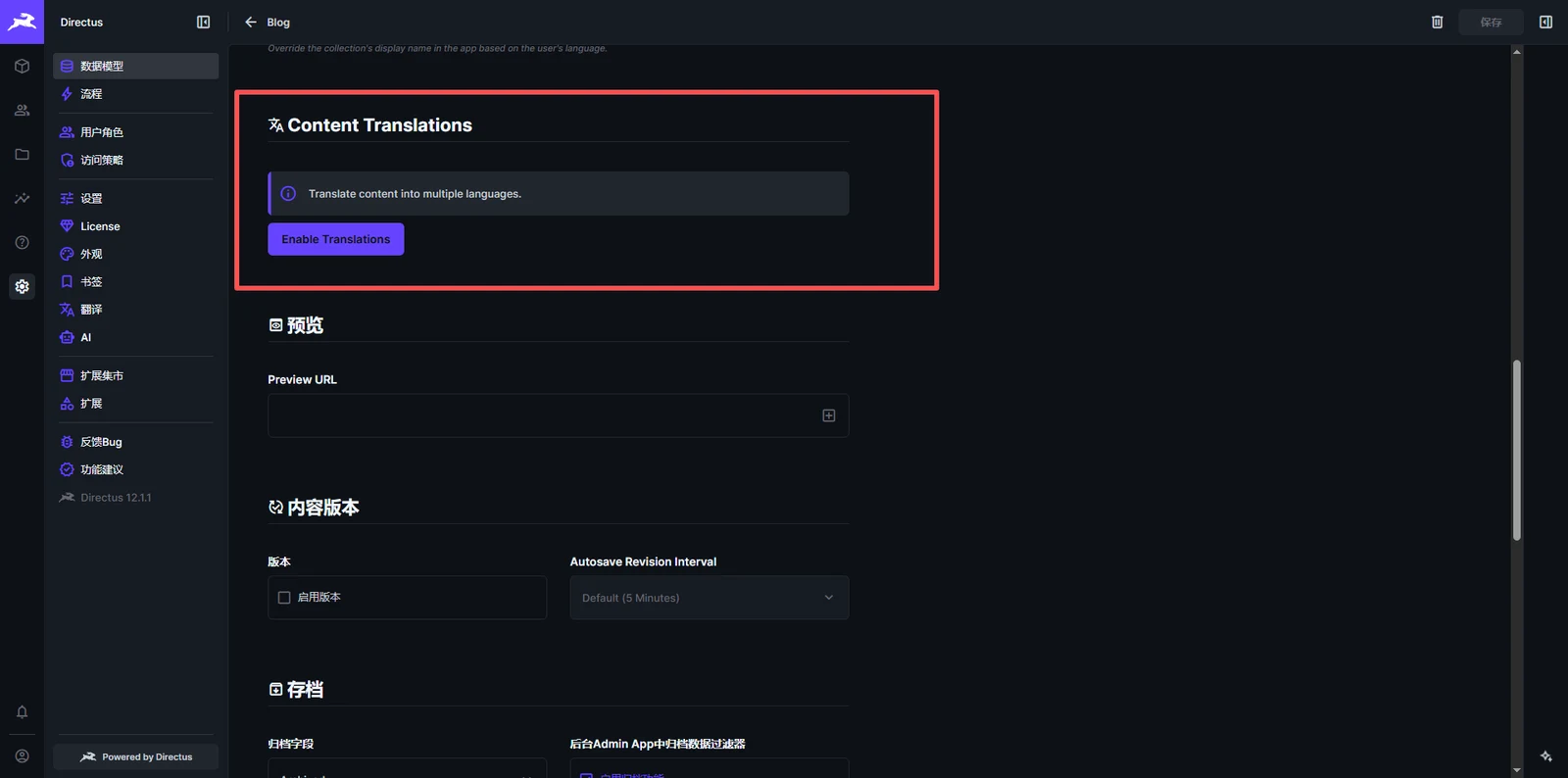
Below that it will usually offer you a Content Translations option
That is easy enough to understand too
The body text is 你好
Underneath it you write the translation, Hello
Two languages, two codes: zh and en
When the interface has a translation button, Chinese requests the content under zh and English requests the content under en
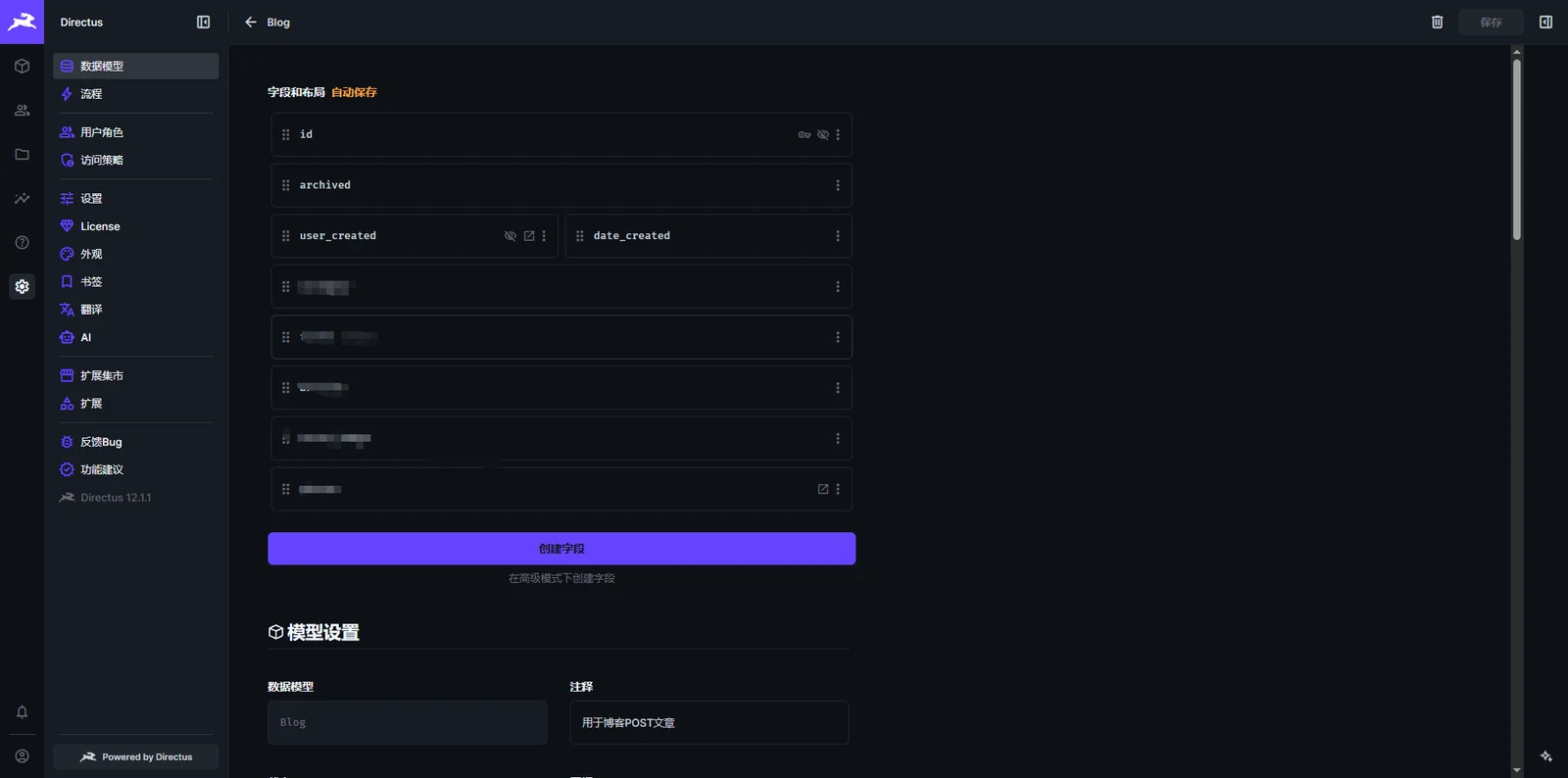
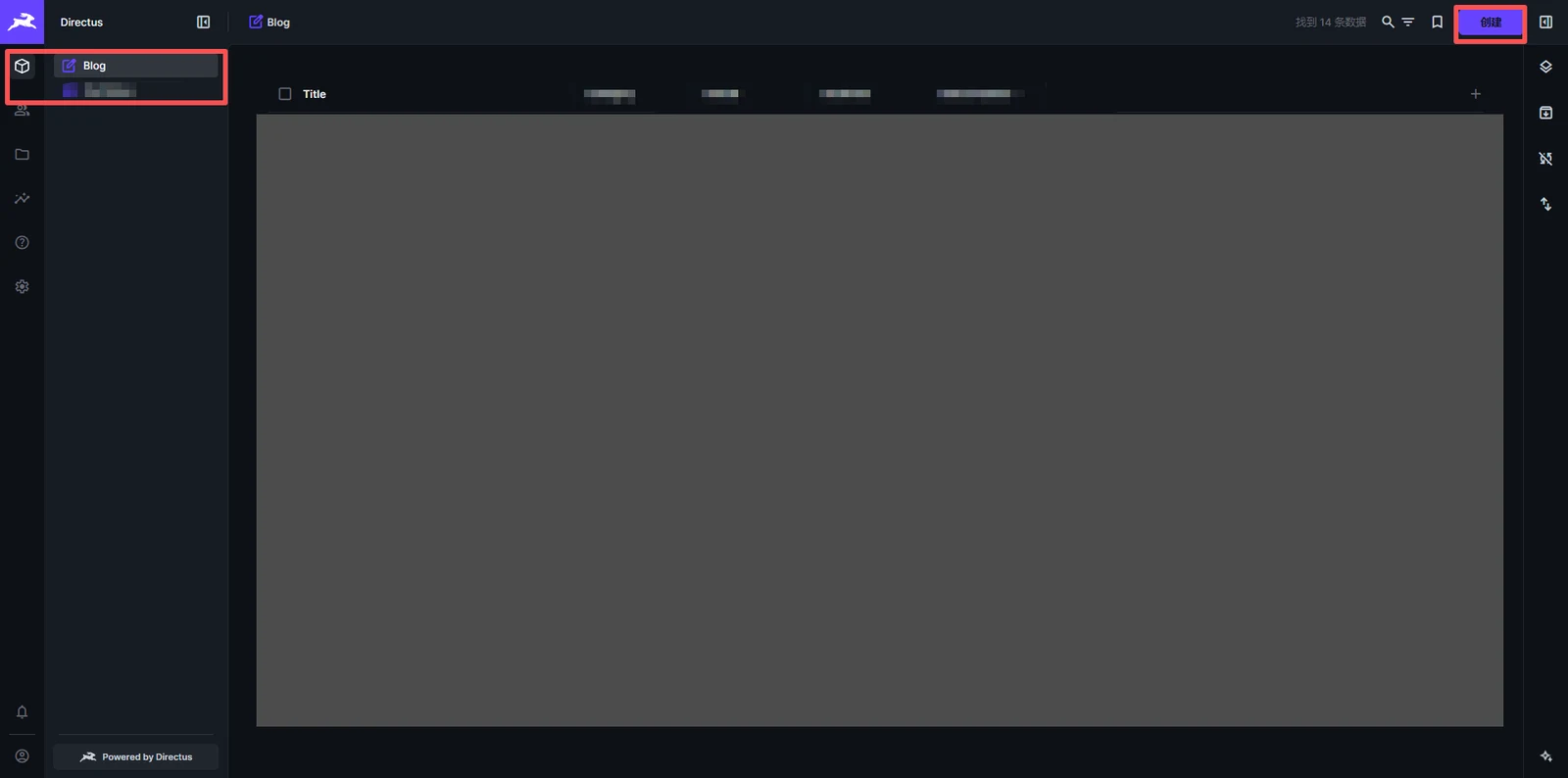
Once it is created, save it and you can start adding fields in the content view
2. Opening up API read permissions (the important part)
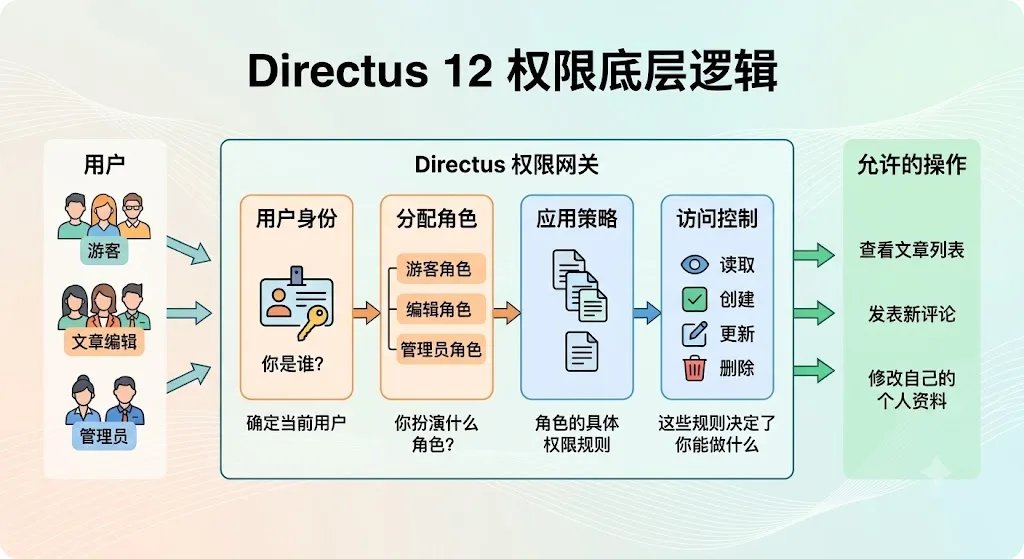
The logic is easy to grasp:
1. What role (identity) are you?
2. Given your identity, what are you allowed to do? (the policy applied)
For example, a visitor hitting the API (user identity) only has permission to view (the applied policy), while an admin user has update and delete permissions through the API.
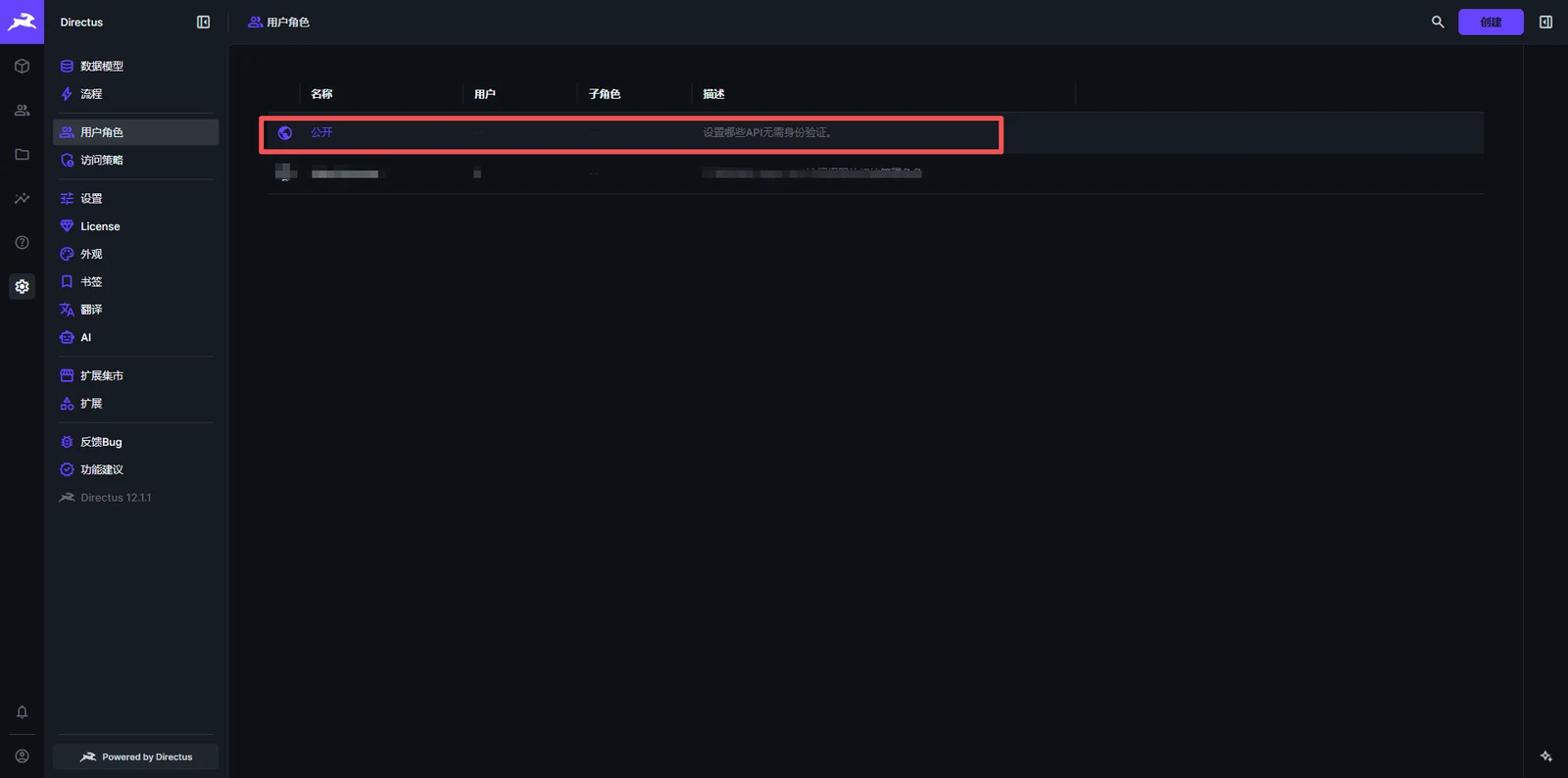
Inside the user roles there is a default "Public" role
The note also says it does not need token verification
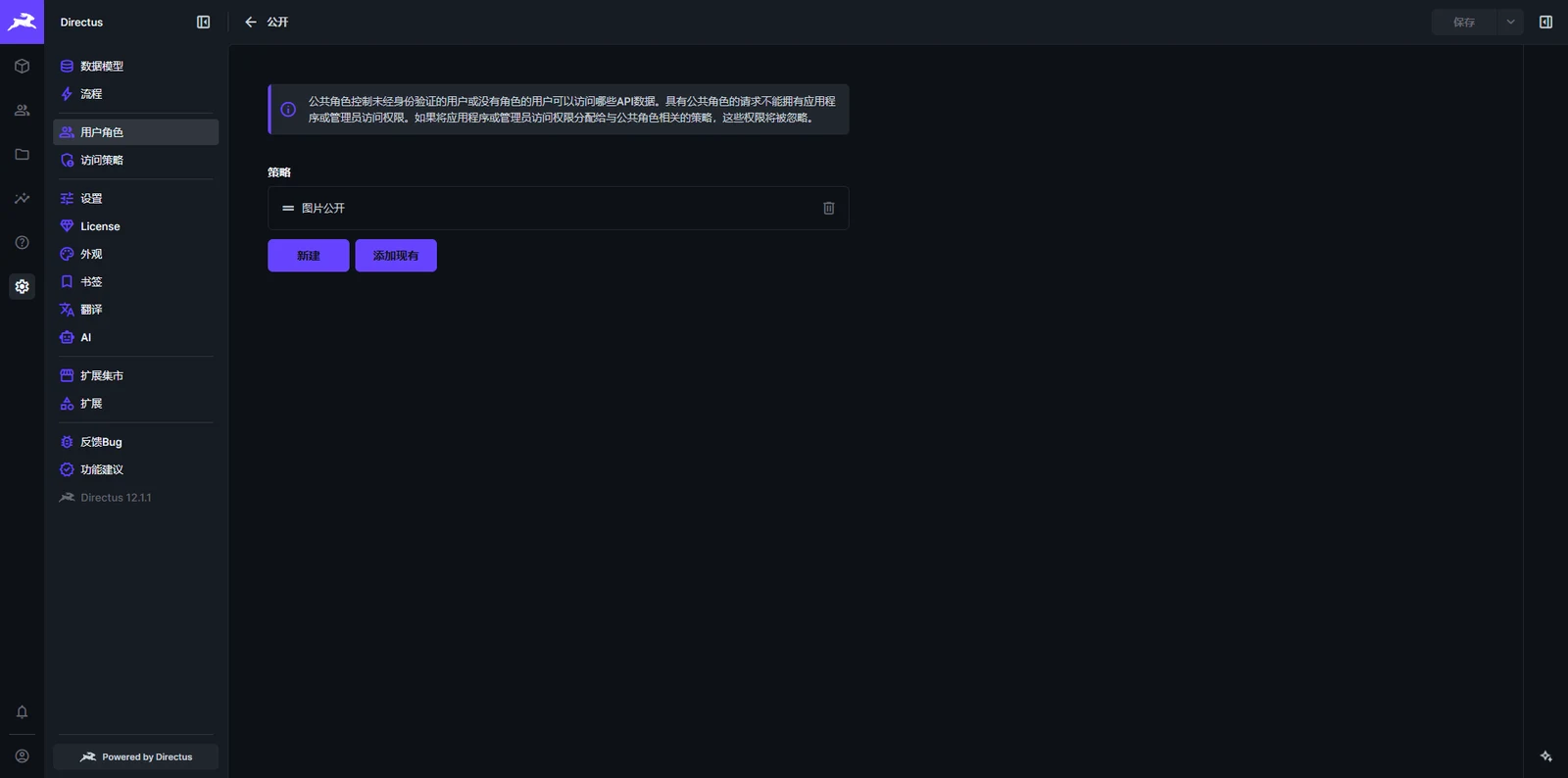
Click into it and you will see the "Public" role has an "Images public" policy
I set that up myself, because if images also required a token to fetch, it would be very easy to leak your token. I really would not recommend doing that.
3. API links
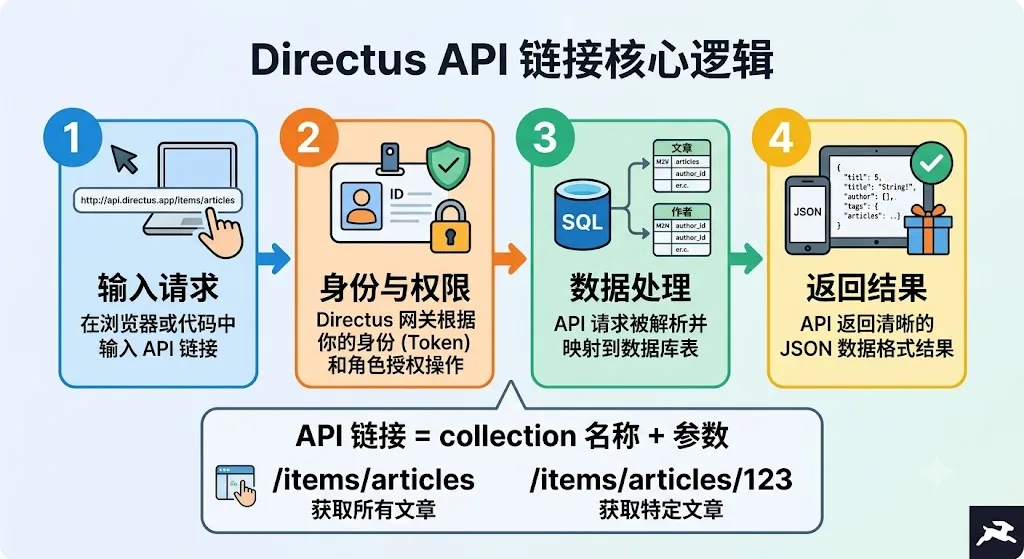
Put simply
You created the blog table
Your domain/items/table-name gives you all the JSON data from that table
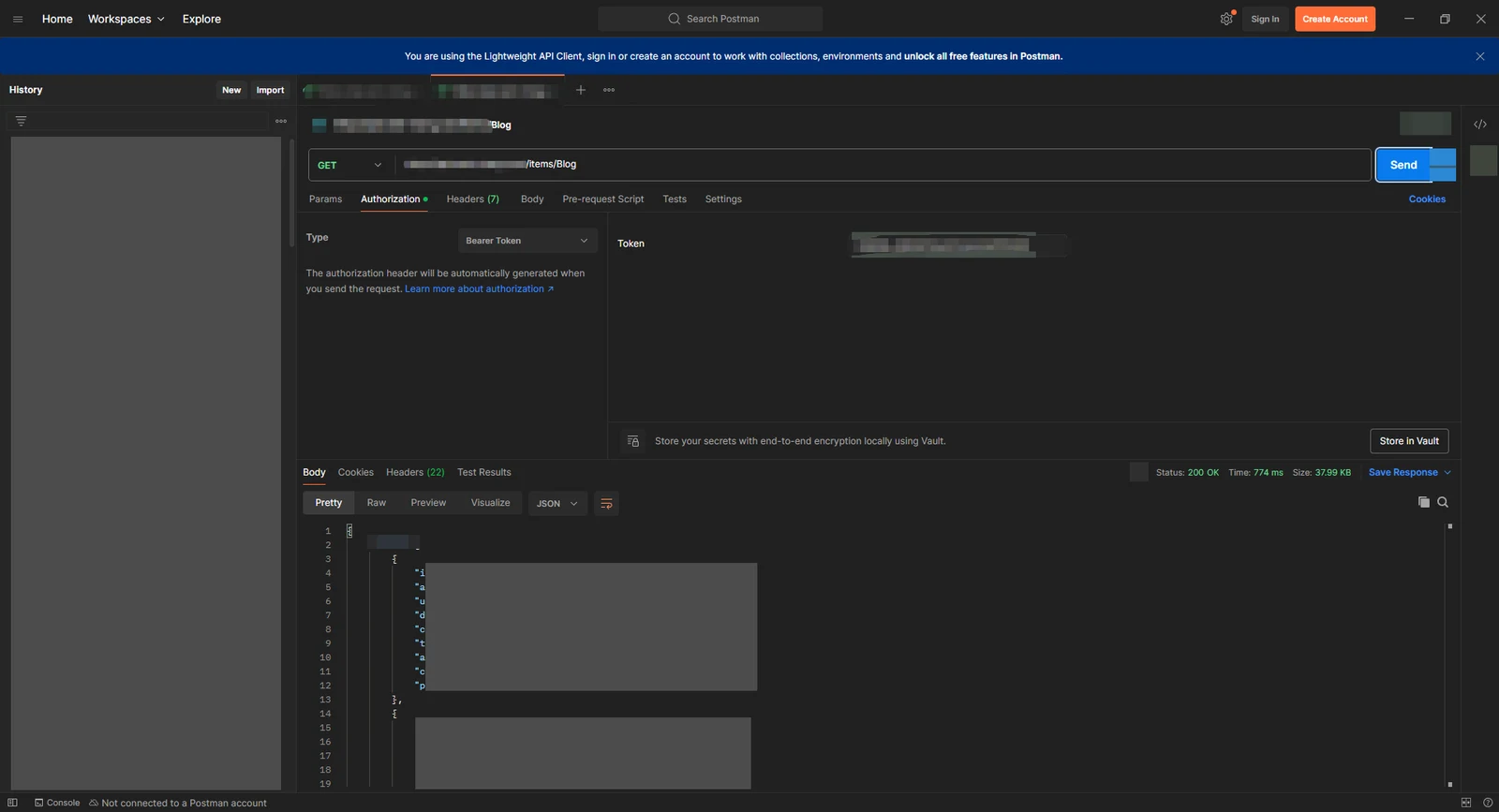
There are other tricks too
For example
https://your-domain/items/table?filter[archived][_eq]=false&fields=id,title,article,categore
That is how you filter data
See the Directus documentation for the details
The logic is very simple
4. How do you add a security token?
This is easy to set up too
Step one: make a "key" in Directus and lock it
It is quite convenient, compared with how it used to be done
It only takes two steps
1. Create a user and generate a token
-
Log in to the Directus admin
-
Click User directory in the left menu
-
Click + Create user in the top right
-
Fill in any name, Frontend for example. No email or password needed
-
The most important step: scroll down on the user profile page and find the Token field
- You will find that saving the user generates a token automatically; save it, then come back and it will be there
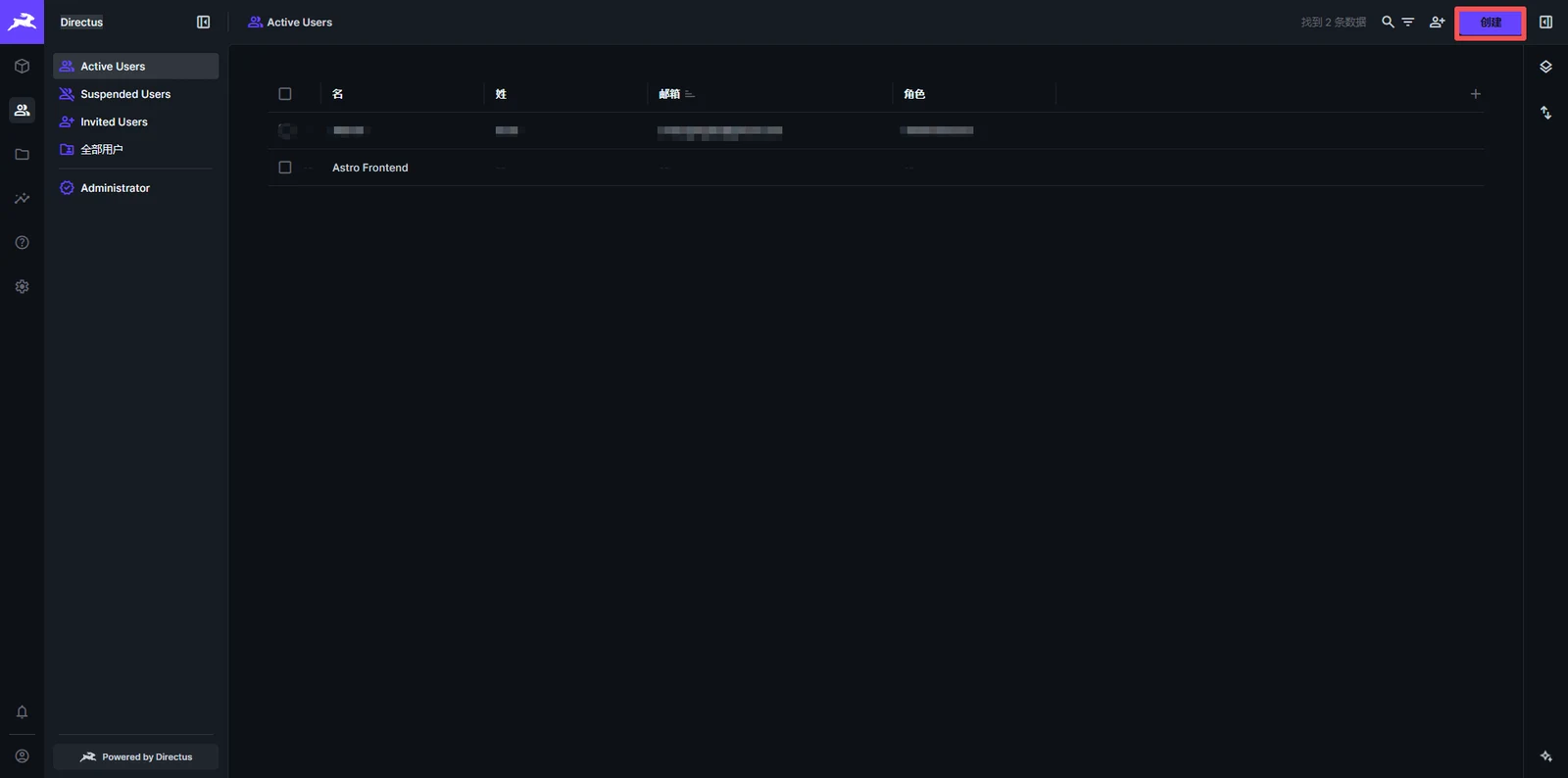
2. Create a matching permission policy
- Set the permissions for the relevant tables
- Assign the account you just created at the bottom
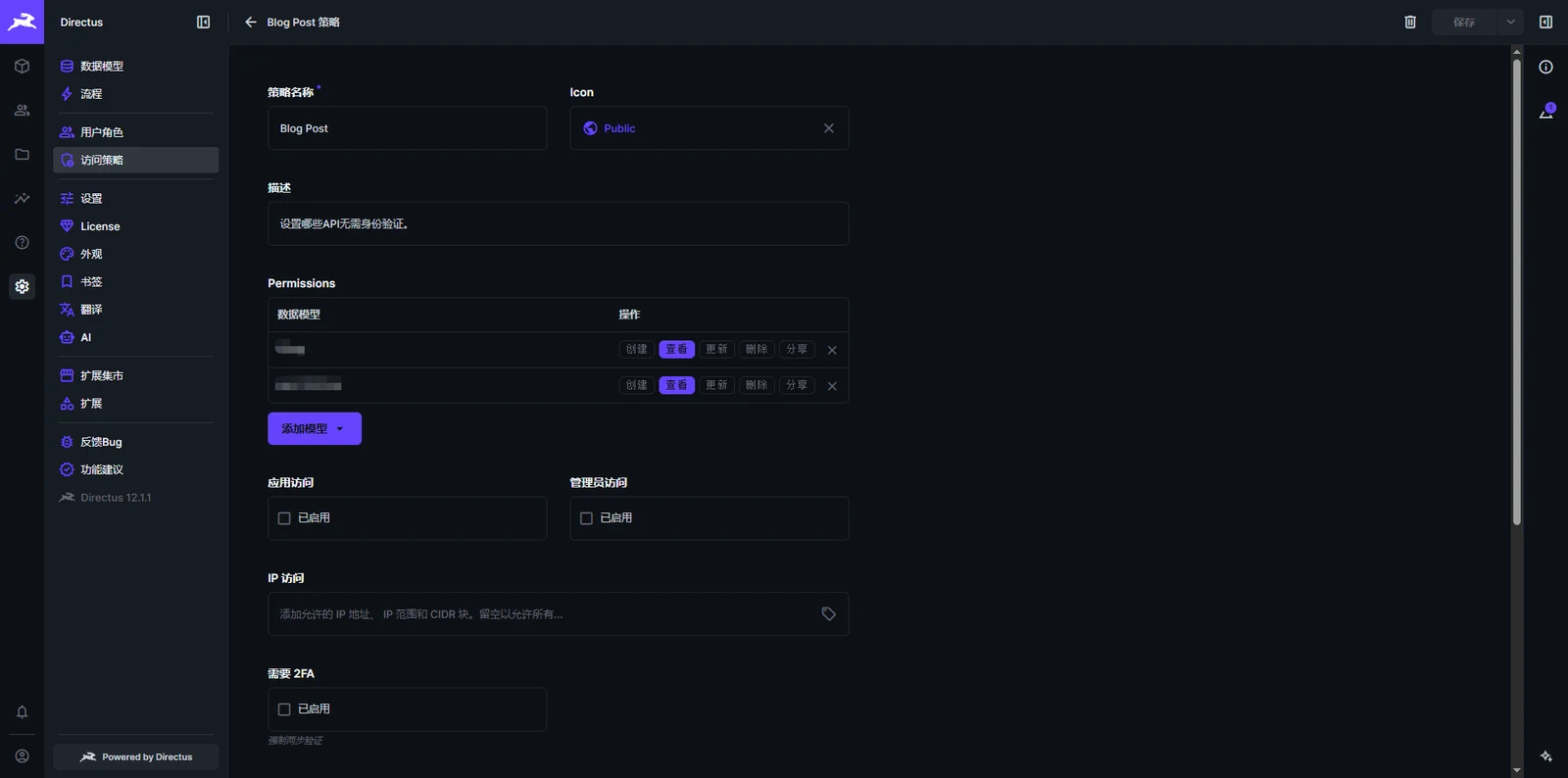
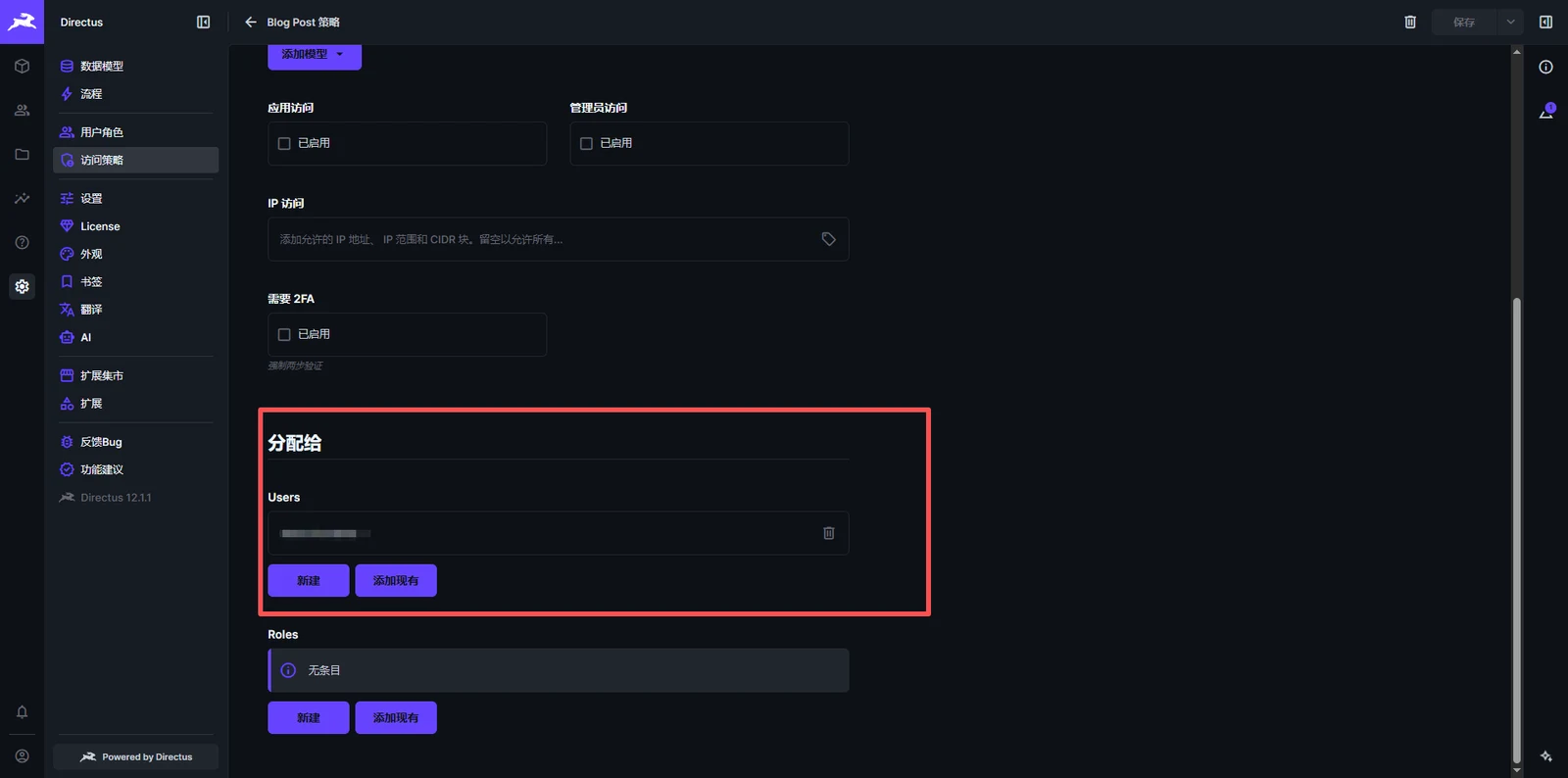
Then you can test it in Postman
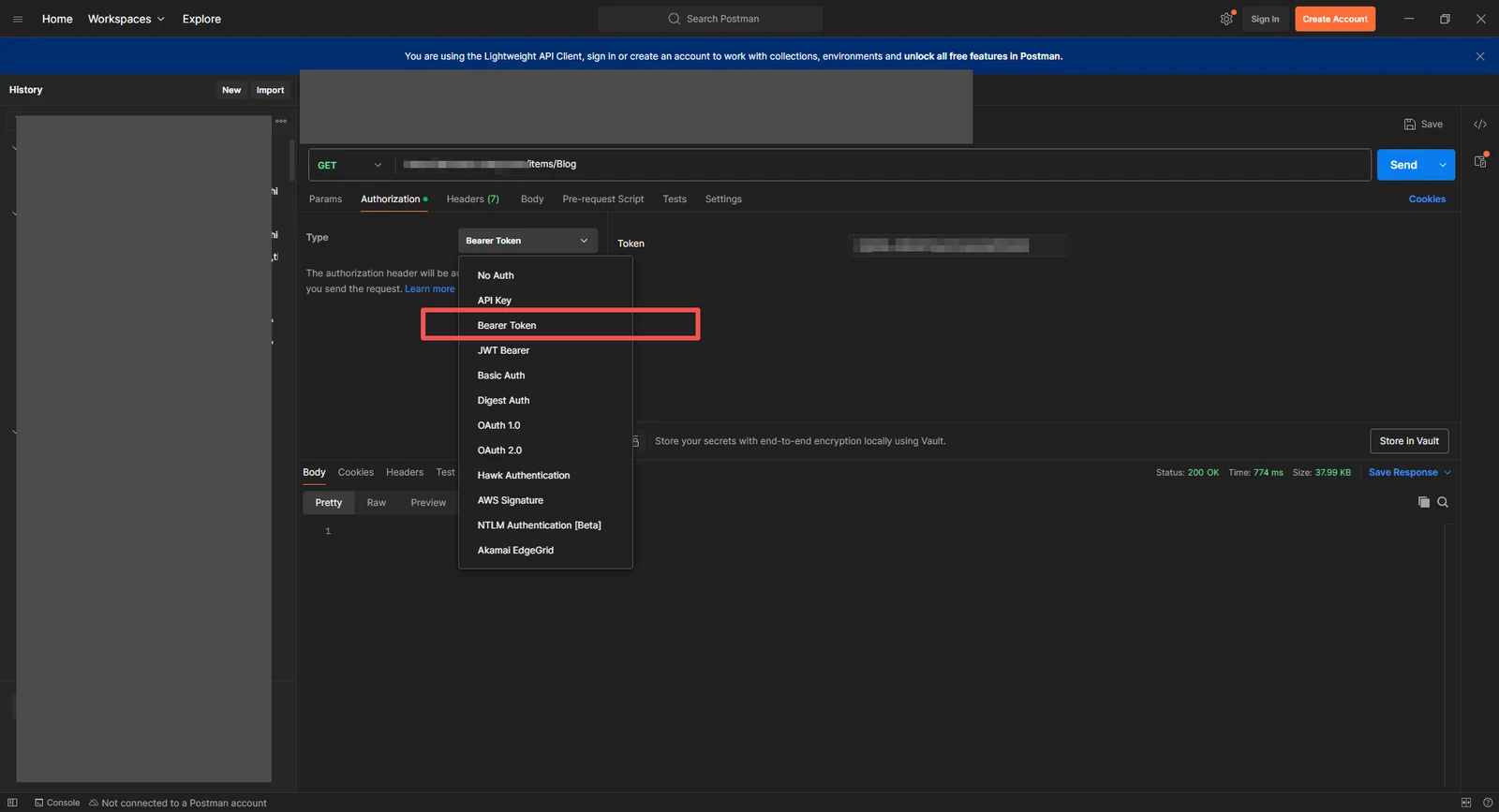
That's it
If you need a running instance first, start with deploying Directus. For the frontend, see the Astro industrial site project.